Tag Archives: Knowledge Base

FAQ FOR UPGRADING TO VERSION 26

FAQ Upgrade to Version 26

Version 26 of ColorGATEs software solutions is out now!  

In this blog entry, we answer the most important questions about upgrading from your current version to V26. 

What Is New in Version 26? 

Our release notes for version 26 describe the changes and improvements since the last version (25.10.19052). You can download them directly by clicking  here (login required). 

Who Is Entitled to Upgrade? 

All customers who have a valid Value Pack on the effective date June 10th, 2026 or later can upgrade to version 26 free of charge.  

If you don’t have a valid Value Pack, your dealer will be able to provide you with a quote for an upgrade. If you have bought your license directly from ColorGATE, you can also contact our Customer Service team (via customerservice@colorgate.com or +49 511 942930). Please remember to include your license number. 

How Do I Upgrade My License? 

Please note that licenses are not upgraded automatically.  

To upgrade your license, the following steps will be necessary: 

  • Check your Value Pack status 
  • If you want to continue using your current version after the upgrade, install the latest build of that version 
  • We recommend creating a backup 
  • Reach out to your dealer or to our Customer Service team (if you bought your license directly at ColorGATE) to have your license updated 
  • Download and install the new version 
  • Import your backed up settings 

Depending on which version and which kind of license you are using, the steps may vary slightly. Here you can check our detailed guide on how to upgrade. 

Can I Still Use My Previous Version After the Upgrade? 

If you still want to use your current version after the upgrade of your license, you must install the latest build of your current version before upgrading. This ensures compatibility between both versions. These versions can be installed side by side on the same system and run alternately: 

  • 21.10.11566 
  • 22.10.14178 
  • 23.11.16237 
  • 24.02.17201 
  • 25.10.19143 

The corresponding builds are available on the Support Site at Menu > Download > Software. Select your software. Select your currently installed version. At the top of the list, you will find the latest build of this version. 

When switching between multiple installations, the previously unused product must be started once with administrative rights. This applies to both licenses with USB key licenses and with soft key licenses. For licenses with soft key, the license must be revoked in the previously used version before switching to another version. To do this, select from the Windows start menu Productionserver/Proofgate/Filmgate2x > Productionserver/Proofgate/Filmgate2x – Revoke License. A dialog will open where you can start the revocation process. This requires an active internet connection. 

Please note that bug fixes are only implemented in the current version and, for a limited time, the previous version. Older versions are only updated to provide license compatibility, bug fixes are not implemented there. 

If you have more questions about upgrading your ColorGATE software to version 26, please contact us via contact@colorgate.com

We wish you much success with your new ColorGATE software version. 

BACKUP & RESTORE – ENSURE A SMOOTH TRANSITION TO NEW SOFTWARE VERSIONS

Backup and Restore for a smooth transition to new software versions

Version changes come with new features and improvements but can also be a challenge when it comes to transferring existing data and configurations securely. To avoid downtime, data loss, and unnecessary effort, it is essential to have a well-planned backup and restore strategy. In this article, we show you how to ensure a smooth transition and prepare your systems for the new version.

Continue reading BACKUP & RESTORE – ENSURE A SMOOTH TRANSITION TO NEW SOFTWARE VERSIONS

Efficiency and Quality in Digital Printing – Reports as the Key to Process Optimization

In today’s world of digital printing, data is everything – use reports to not only track processes, costs and quality, but also specifically optimized in a targeted manner. ColorGATE offers several reporting functions that go far beyond simple evaluations. In this article, you will learn what reports are available in ColorGATE software and how you can use them efficiently in your workflow.

Continue reading Efficiency and Quality in Digital Printing – Reports as the Key to Process Optimization

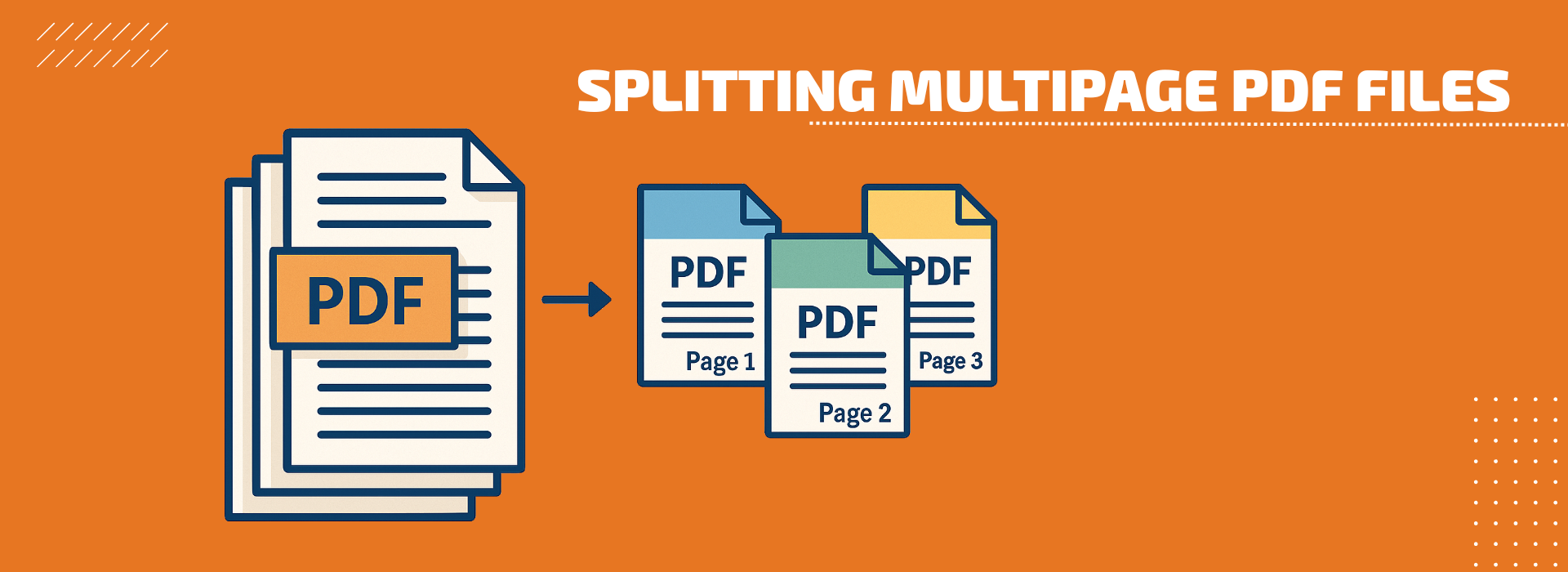
Efficient job processing despite different page sizes: How to master complex PDF files with ColorGATE

Multipage PDF files are a part of everyday life in modern print production. But what do you do when these files not only contain many pages, but also different page sizes? This is exactly where the new functions of the ColorGATE software come in. They enable highly automated, flexible and efficient processing – without any manual preparatory work.

Continue reading Efficient job processing despite different page sizes: How to master complex PDF files with ColorGATE

Print More Accurately and Efficiently With the New Multilayer Printing From ColorGATE

Multilayer printing is the way to make most use of advertising space. Be it with films printed on both sides, e.g., for shop windows, or with posters in Day & Night design, which unfold their full potential with backlighting.

Continue reading Print More Accurately and Efficiently With the New Multilayer Printing From ColorGATE

FAQ for Upgrading to Version 24

Version 24 of Productionserver, Proofgate and Filmgate is out now! If you have a valid Value Pack, you can update, free of charge. In this blog entry, we answer the most important questions about upgrading to V24.

The upgrade process from one version to the next is generally the same. Before upgrading, you should back up and restore your system configuration. Your usual settings, profiles and printer definitions will then be available directly in V24. In version 23.10 and higher, you also have the option of importing your system configurations using the Setup Assistant.

Further information about the import process can be found in this blog article: ensure-a-smooth-transition-from-v23-to-v24-with-backup-and-restore.

Continue reading FAQ for Upgrading to Version 24

Tips and Tricks for MIM’s – Part 3: Creating new MIM’s

MIM combinations ensure smooth interaction between printer and software, as they contain the most important parameters for the printing process which are automatically implemented during printing. There are numerous tips and tricks that can be used to create and apply MIM’s even more easily. We would like to share these with you in this blog article.

Continue reading Tips and Tricks for MIM’s – Part 3: Creating new MIM’s

Tips and Tricks for MIM‘s – Part 2: Duplicating and Editing MIM’s

MIM combinations contain important production-relevant parameters that are automatically applied during the printing process and therefore reliably lead to consistently high print quality. In this blog article, we give you helpful tips and tricks for creating and handling MIM combinations.

Continue reading Tips and Tricks for MIM‘s – Part 2: Duplicating and Editing MIM’s