Version 26 of ColorGATEs software solutions is out now!
In this blog entry, we answer the most important questions about upgrading from your current version to V26.
Continue reading FAQ FOR UPGRADING TO VERSION 26



Version 26 of ColorGATEs software solutions is out now!
In this blog entry, we answer the most important questions about upgrading from your current version to V26.
Continue reading FAQ FOR UPGRADING TO VERSION 26
Version 25.10 of ColorGATE software is out now! If you have a valid Value Pack, you can update free of charge. In this blog entry, we answer the most important questions about updating from your current version to V25.10.
Continue reading FAQ for Updating to Version 25.10
Version 25 of ColorGATE software is out now! If you have a valid Value Pack, you can upgrade free of charge. In this blog entry, we answer the most important questions about upgrading to V25.
Continue reading FAQ for Upgrading to Version 25
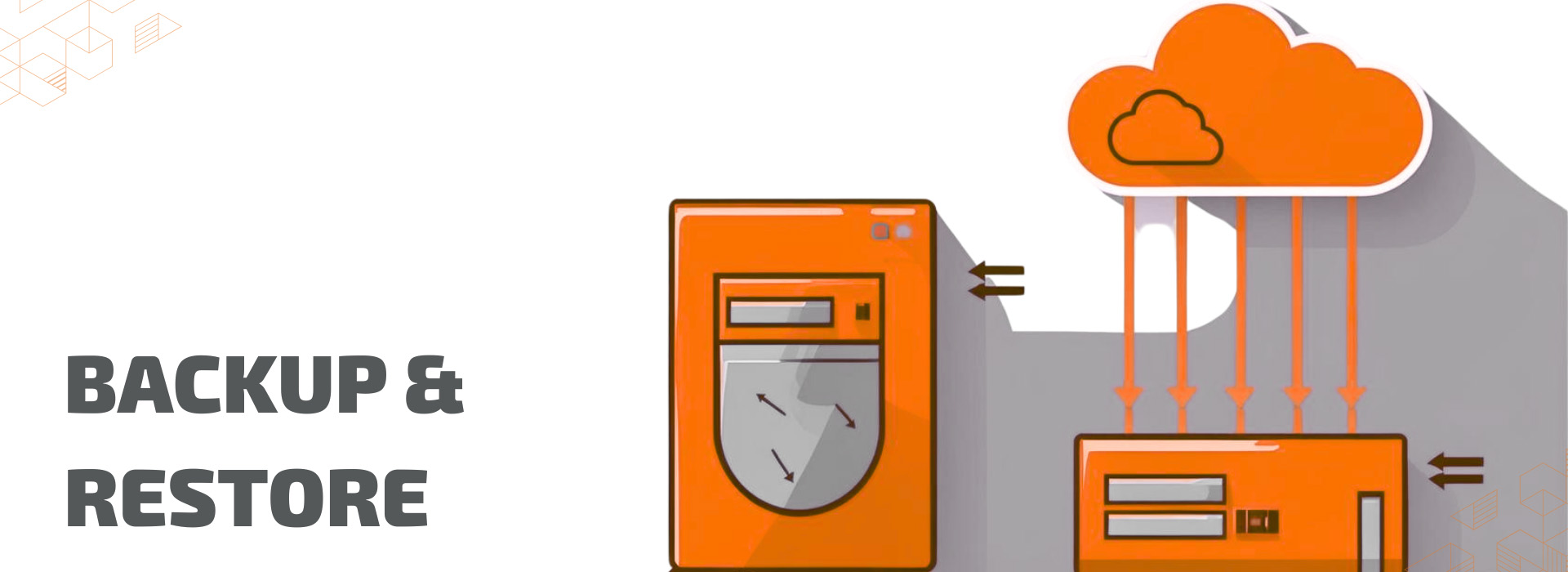
Version changes often bring new functions and improvements, as well as challenges, especially when transferring existing data and configurations securely. To avoid downtime, data loss, and unnecessary effort, it is essential to have a well-planned backup and restore strategy. In this article, we will show you how to ensure a smooth transition and prepare your systems for the new version.
Continue reading Ensure a Smooth Transition From V24 to V25 With Backup and Restore
To ensure a smooth transition from version 23 to version 24, you should back up and restore your system configuration. This way, your usual settings, profiles and printer definitions will be directly available in V24.
Continue reading Ensure a smooth transition from V23 to V24 with backup and restore
Version 24 of Productionserver, Proofgate and Filmgate is out now! If you have a valid Value Pack, you can update, free of charge. In this blog entry, we answer the most important questions about upgrading to V24.
The upgrade process from one version to the next is generally the same. Before upgrading, you should back up and restore your system configuration. Your usual settings, profiles and printer definitions will then be available directly in V24. In version 23.10 and higher, you also have the option of importing your system configurations using the Setup Assistant.
Further information about the import process can be found in this blog article: ensure-a-smooth-transition-from-v23-to-v24-with-backup-and-restore.
Continue reading FAQ for Upgrading to Version 24
To ensure a smooth transition from version 22 to version 23.10, you should back up and restore your system configuration. This way, your usual settings, profiles and printer definitions will be directly available in V23.10
In V23.10, you can transfer the system configuration to V23.10 as before using the backup and restore function (Menu Options > System Configuration). You can find out how to do this in this section.
Alternatively, you can transfer the system configuration using the Setup Assistant, which is available in V23.10. This contains an import function with which you can quickly and easily transfer the system configuration from version 22 to V23.10. You can find out how to use the import function in the Setup Assistant in this section.

To ensure a smooth transition from version 22 to version 23, you should first back up your RIP configuration. This way, your usual settings, profiles and printer definitions will be directly available to you in the new version. Thanks to the integrated backup and restore function, this can be done conveniently.
Continue reading Backup & Restore: Ensure a smooth transition from V22 to V23
Version 23 of Productionserver, Proofgate and Filmgate is out now! If you have a valid Value Pack, you can update now, free of charge. In this blog entry, we answer the most important questions about upgrading to V23.