



ColorGATE supports more than 2.000 different devices. Some of them need dedicated steps to set up or install the device. The Epson SD-10, which is now supported in ColorGATEs printing software, is one of those devices. In this short guide you learn what you need to know to get your new device up and running.
About the Epson SD-10
The Epson SD-10 is a spectrophotometer from Epson that can be used as a handheld device or in conjunction with a measuring table. A key feature is that it requires users to log in to Epson Cloud Solution Port using an Epson Global ID.
What you need to prepare outside of ColorGATE software
The device requires an Epson Cloud Solution Port account. If you already have one, you can log in using an Epson Global ID. If you do not yet have one, you must first register for Epson Cloud Solution Port at https://port.epson.com/. There, you must either register a new organisation and add an Epson printer to it, or assign the account to an existing organization
How to use the Epson SD-10 in ColorGATE Productionserver
Before the first measurement can be taken, you must first complete the authentication process in Epson Cloud Solution Port.
The following window appears the first time you attempt to take a measurement with the SD-10:
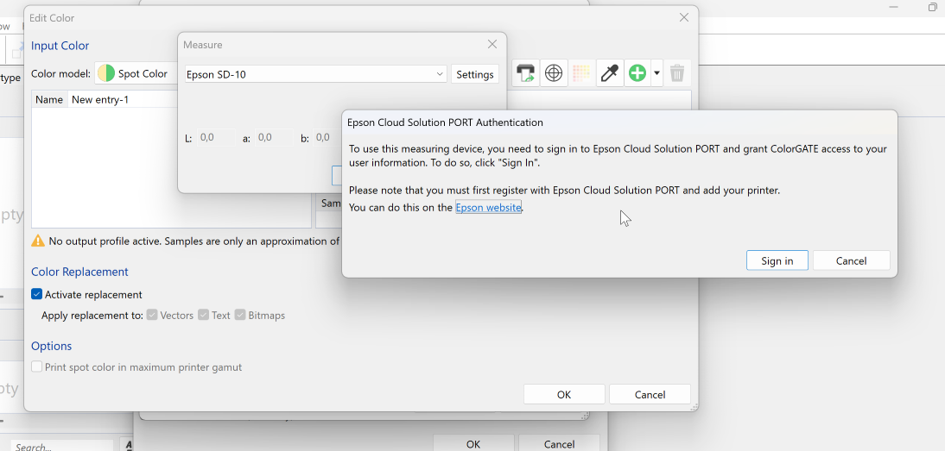
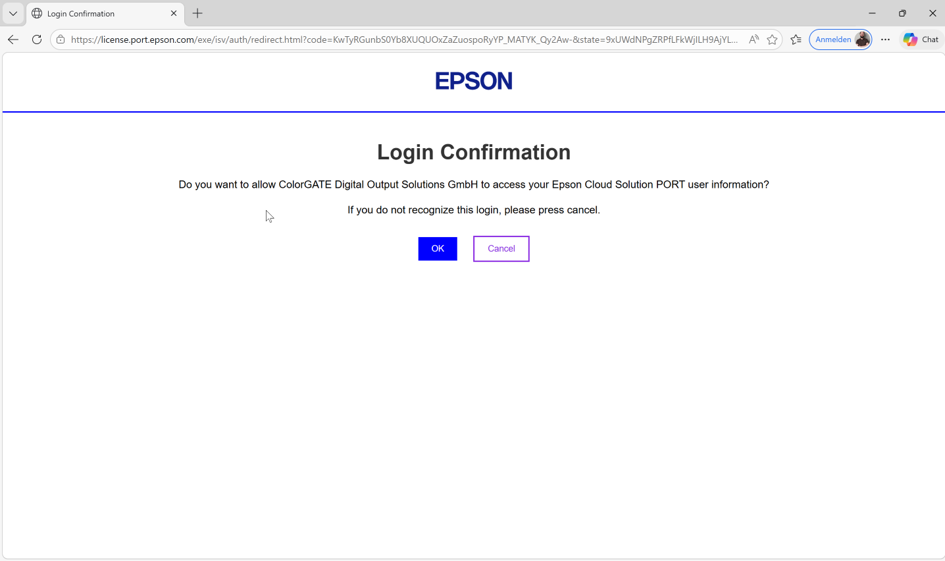
Clicking ‘Sign in’ opens Epson Cloud Solution Port in the browser. After logging in with a valid Epson Global ID, the user is prompted to confirm that they are granting ColorGATE access to Epson Cloud Solution Port. Without this authentication, it is not possible to use the measuring device in Productionserver.
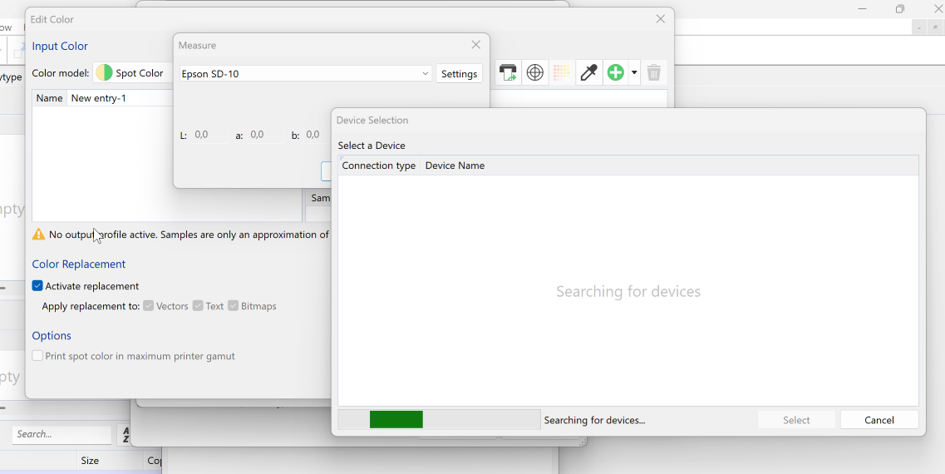
You can then close the window. A new dialogue box, ‘Device Selection’, appears in Productionserver. By now, at the very latest, the SD-10 should be switched on.
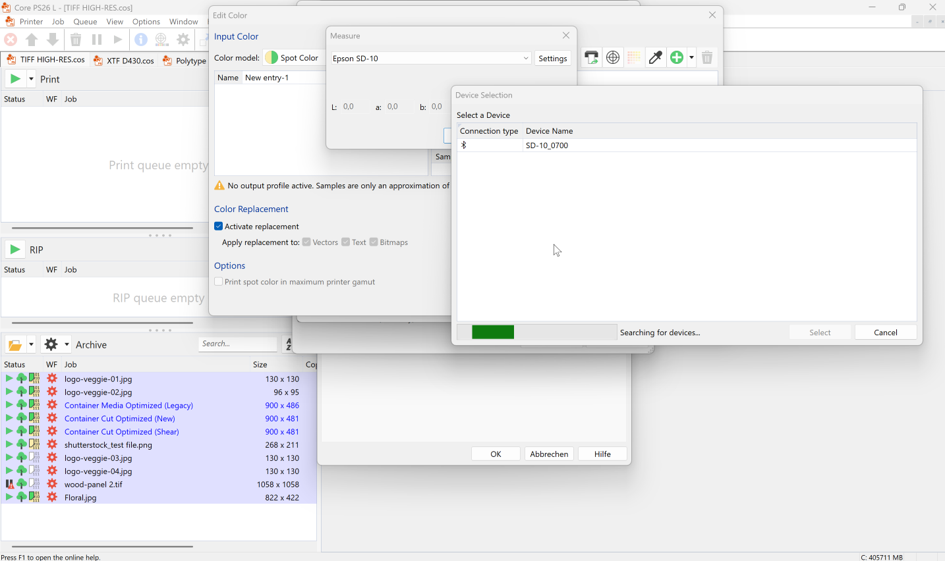
The device can be connected via Bluetooth or USB; the optional measuring table can only be connected to the production server via USB.
Once you have selected the device in this window, it can be used for measurement.
Productionserver remembers your login details. Occasionally, you may need to log in again because the authentication token has expired.
We are happy to support you in using your new measurement device. For general and commercial questions, please contact contact@colorgate.com. Please include your license number.
If you have technical issues, please open a web ticket. You can find here details about creating web ticket.