


Version changes come with new features and improvements but can also be a challenge when it comes to transferring existing data and configurations securely. To avoid downtime, data loss, and unnecessary effort, it is essential to have a well-planned backup and restore strategy. In this article, we show you how to ensure a smooth transition and prepare your systems for the new version.
Here you will find details about the following topics:
- General Recommendations
- Requirements to back up and restore the system configuration
- Importing system configuration from a previous version via the Setup Assistant
- Restoring a previously backed up system configuration
- Backing up system configuration from version above version 8
- Restoring system configuration in new version
- Importing settings from older versions without” Backup and Restore” function
For more information on upgrading to new versions, please also check our FAQ article. Please also refer to our article on version upgrades with activated Access Control Module.
General Recommendations
If you are going to use your current and your new version on the same computer, we recommend importing the system configurations of your current version directly into the new version using the Setup assistant. This contains an import function that allows you to quickly and easily transfer the system configuration. This way ensures that all your usual settings, profiles, and printer definitions will be directly available in the new software version. You can find out how to use the import function in the Setup assistant in this section.
If you are going to use your current and your new version on different computers, you should create a backup of your current system configurations and restore the backup in the new version. This ensures that your usual settings, profiles, and printer definitions will be available in the new version. You can find out how to use the backup and restore function in this section.
Requirements to Backup and Restore the System Configuration
If you still want to use your current version after the upgrade of your license, you must install the latest build of your current version before upgrading. This ensures compatibility between both versions. These versions can be installed side by side on the same system and run alternately without any problems.
The following table shows the compatibility builds with the next versions of the software and the date on which your Value Pack must be valid. You need a valid Value Pack to upgrade your software for free.
| Compatible builds for upgrading | |||||
| Version 25 | Version 24 | Version 23 | Version 22 | Version 21 | Version 20 |
| 24.02.17165 (Value Pack valid at least until September 16th, 2024) | – | – | – | – | |
| 23.11.16235 (Value Pack valid at least until November 8th, 2023) | 23.11.16216 (Value Pack valid at least until November 8 th, 2023). | – | – | – | – |
| 22.10.14177 (Value Pack valid at least until April 28th, 2025) | 22.10.14176 (Value Pack valid at least until October 25th, 2022) | 22.10.14158 (Value Pack valid at least until October 25th, 2022) | – | ||
| 21.10.11565 (Value Pack valid at until least April 28th, 2025) | 21.10.11564 (Value Pack valid at least until October 21th, 2021) | 21.10.11562 (Value Pack valid at least until October 21th, 2021) | 21.10.11524 | – | – |
| 20.01.9224 (Value Pack valid at least until April 28th, 2025) | 20.01.9223 (Value Pack valid at least until March 31st, 2021) | 20.01.9222 (Value Pack valid at least until March 31st, 2021) | 20.01.9221 (Value Pack valid at least until March 31st, 2021) | 20.01.9220 (Value Pack valid at least until March 31st, 2021) | – |
| V10 is not supported | 10.34.8853 (Value Pack valid at least until September 1st, 2020) | 10.34.8852 (Value Pack valid at least until September 1st, 2020) | 10.34.8852 (Value Pack valid at least until September 1st, 2020) | 10.34.8852 (Value Pack valid at least until September 1st, 2020) | 10.34.8852 (Value Pack valid at least until September 1st, 2020) |
The corresponding builds are available in the Service & Support area of our website under Menu > Download > Software. Select your software. At the top of the list, you will find the latest build of this version. Click the download icon to download the installer and afterwards, install this build.
Importing the System Configuration From Your Current Version via Setup Assistant
Since V23.10 a setup assistant opens automatically when you first start the software.
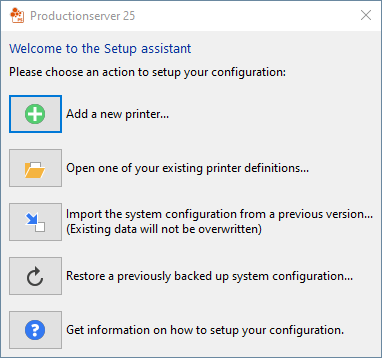
If required, you can also open the setup assistant manually at any time by clicking on Help > Setup assistant…. Via this assistant, you can import the system configuration of your current version into the new version, without the need to manually backup and restore the system configuration.
Tip: If you prefer a video tutorial to written instructions, you can watch our video on YouTube: https://youtu.be/DZ7SkgBbSMo.
Follow the next steps to import the system configuration from the previous version:
- Click Import the system configuration from your current version…. A dialog opens.
- Select the installed version to import from.
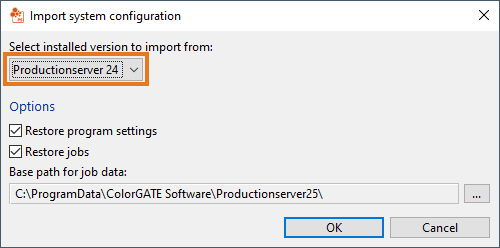
- At Options select the type of data you want to import into your new version. You can select Restore program settings and / or Restore jobs. The restoring of program settings makes sure you use the same settings as in your previous installation. If not selected, you keep your current settings. If you select Restore jobs, your job folder will be restored.
- Base path for job data: This is the path to store your job data. By default, it is the JobDir folder of your installation. Change this only if you want to store your job data in a special location (e.g., another hard drive).
- Click OK. After the import, you will get confirmation that the selected data has been imported.
Restoring a Previously Backed Up System Configuration via the Setup Assistant
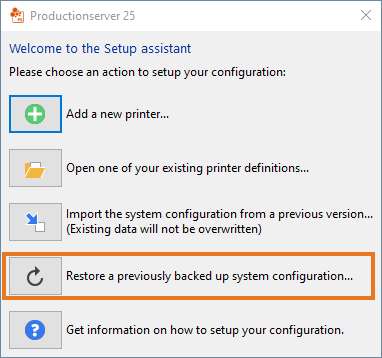
If you have already backed up the system configuration of your current version, you can restore it quickly and easily via the Setup assistant of the new version.
To do this, click Restore a previously backed up system configuration…. in the Setup assistant dialog and follow the steps described here.
Backup and Restore the System Configuration via the Backup and Restore Function
Since version 8.11 the integrated backup and restore function ensures a smooth transition from your current version to the new version.
When switching between multiple installations, the previously unused product must be started once with administrative rights. This applies to both licenses with USB key and licenses with soft key. For licenses with soft key, the license must be revoked in the previously used version before switching to another version. To do this, select e.g. Productionserver/Proofgate/FilmgateXX> Productionserver/Proofgate/FilmgateXX— Revoke license in the Windows start menu. A dialog opens in which you can start the revocation process. An active Internet connection is required for this.
Tip: If you prefer a video tutorial to written instructions, you can also watch our YouTube video on how to transfer the system configuration via Options > System Configuration: https://youtu.be/BDK1T1ThfHM.
Backing Up the System Configuration With Version 8.11 or Higher
Follow the next steps to back up the system configuration via Options > System Configuration.
- Start the software, you want to create the backup from.
- Select Options > System Configuration > Backup… to open the Backup RIP Configuration dialog. You see the following options:
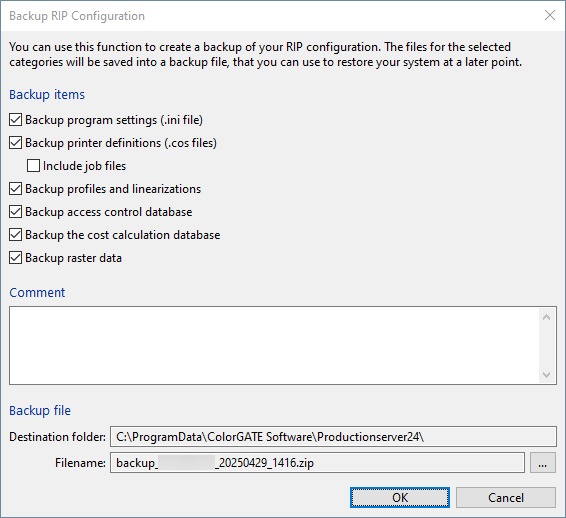
- The option Backup program settings contains e.g., measuring device settings or the currently opened printers.
- The printer definitions contain, e.g., the hotfolder settings. You can also save all jobs with the Include job files option. This allows you to reprint them without having to rip them again.
- The option Backup profiles and linearizations saves not only the profiles and linearizations files, but also the entire MIM combinations.
- The settings of the Access Control Module and the Cost Calculation Module can also be backed up.
- The Backup raster data option is only needed, if you use Filmgate or the Film & Plate Module for Productionserver and use your own screen sets.
- In the Comment field, you can add a description for the backup, so that you can later identify what the backup was created for and from which state it was. Both the destination folder and the file name can be customized according to your own preferences.
- After clicking OK, a dialog box shows the size of the uncompressed data. The larger the amount of data, the longer the backup process will take.
- After clicking Yes, the data is compressed and stored in a zip file to save disk space. With gigabyte-sized jobs in the archives, this may take more than 10 minutes.
- Once the backup is complete, the software will ask whether and when to remind you about the next backup. You can select 1 week, 2 weeks, or 4 weeks, or define a custom date.
- The backup process is now complete. You can now import the backup of the system configuration into your V25 installation.
Restoring the System Configuration in The New Version
- Start the new version with administrative rights to ensure all required permissions are available during the import process.
- Go to Options > System Configuration > Restore… to open the Restore RIP Configuration dialog.
- Click Open and select the previously created backup file from the previous version there.
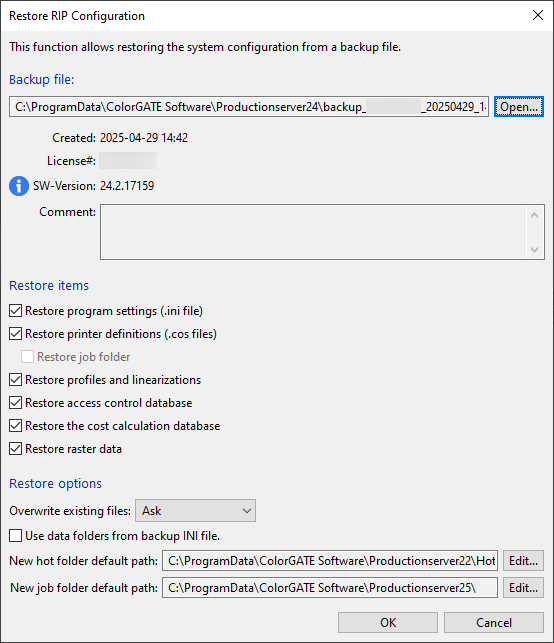
The dialog displays details about the backup including the version it was created with and the data it contains. - Select the desired options under Restore items.
- Under Restore options, you can define whether existing data should be overwritten. In addition, you can decide whether you want to import the backup into the current default paths or use new paths. The archive folders (respectively the jobs contained in them) will then be stored there.
Note: If you use the INI data folders, this might mean that the folders for profiles, job archive and hotfolder from the previous version are used. This can cause conflicts, for example when switching between V24 and V25 or if the V24 folder structure is deleted. Therefore, we recommend using this option only when restoring a backup of the same version, rather than when upgrading to a new version. - After you have clicked OK, another confirmation request appears, and, if necessary, the files to be overwritten are displayed. During a version upgrade, usually everything can be overwritten.
- After finishing the import, you need to restart the software. The imported data will be visible, and you can continue to work in the new version as you did in your previous version. We recommend checking the hotfolder settings to learn, for example, about new options and possibilities of the new version.
If you are sure that you have transferred all the required data, you can uninstall the previous version. The data from the previous version will not be deleted when uninstalled. To free up disk space, the data must be deleted manually.
Importing the Settings From Your Current Version Without the Backup/Restore Function From Version 8 or Older Versions
Please note: Especially if several versions were skipped, we recommend you to check or reconfigure your hotfolder settings. This way you can also benefit from new features or options, like new cut marks, expanded container options, new options for processing multi-page files. In case you prefer continuing with your previous settings, you can also export them from your current version. After you have finished, open the new version and import the settings one by one. It is important to transfer the settings in the same order as described below.
- Printer definitions (*cos-files):
Set up a new *cos-file in the new version by clicking Printer > New. Please note: We do not recommend exporting printer definitions from older versions. The reason is that the *cos-file will still refer to the old directories. - Import MIM combinations:
First export all your MIM combinations via the MIM administration. To do this go to Options > MIM Administration…. In the dialog MIM Administration: [printer name] select your MIM combinations and click Export MIM combinations. To import the MIM combination in the new version, select your MIM combination and click on Import MIM combinations. - Import hotfolder settings:
To transfer your hotfolder settings, open the Hotfolders tab in the printer properties. Go to Printer > Properties…. In the dialog Printer Properties – [printer name] double-click the hotfolder. The Hotfolder: [printer name] dialog opens. There click on Save All Settings. To import the settings in the new version, open the Hotfolders tab and add a new hotfolder. Now double-click on it and click in the hotfolder dialog on Open All Settings. - Import color table:
First export your color table. To export a color table in your current version, double-click on the job that uses it. The job settings will open. Got to the Color tab and click on the Color Table… button. In the dialog Edit Color Table click on Save Color Table to export the file. To import it into the new version you need to do is to open the job (or hotfolder) settings, click Color Table… and click on Load Color Table. - Import jobs:
Jobs do not need to be exported. The original file, print data, job settings, etc. are stored to a CJB-folder (job folder). These folders can be found in the archive directory defined in the printer settings and simply need to be copied into the archive directory of your new printer definition. They will appear after restarting the software. The default destination path is: C:\ProgramData\ColorGATE Software\Productionserver7\JobDir\.
If you have any questions about the smooth transition from your current to the new version, please contact us. For general and commercial questions, please contact contact@colorgate.com. Please include your license number.
If you have technical issues, please open a web ticket. You can find here details about creating of web ticket.